Showing posts with label Microsoft Office. Show all posts

Monday, February 21, 2011

Outlook items read when selection changes

Dear Readers,

I have seen many of my co-workers suffering with this problem. They open outlook and start reading emails. When they move to next, next emails the previous emails goes read. In this way they miss out some important emails or they again mark that as unread to read it later.

This happens daily but no one is fixing this though they understood it's an extra effort for them daily. It's very simple to fix. Please follow the below steps.

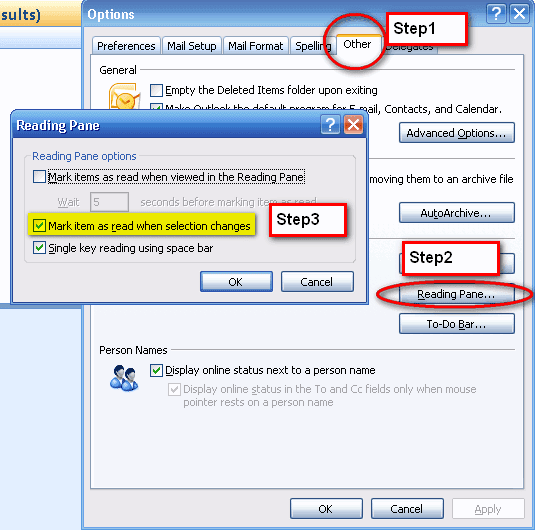
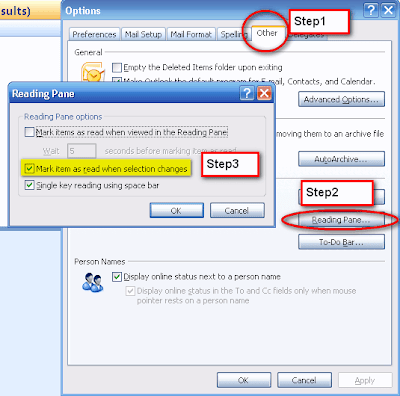
Step1: Goto Tools --> Options
Step2: Click on "Other" tab and select "Reading Pane" under Outlook Panes.
Step3: Now un-check "Mark items as read when selection changes".


Saturday, February 5, 2011

Microsoft Office 2003 to 2007 usage

Dear Readers,

One of our reader has queried to us like they were using office 2003 for long and now they have upgraded to 2007 version. The interaction and the usage is very different in 2007 compared with 2003.

This becomes difficult to everyone hence microsoft has given an online interactive guide thru which we can click on the options as like 2003 version and it will show how we should work in 2007 version.

Try this and let me know if you specifically looks for something.

Click here to navigate to interactive guide.

Extracting cells with specific Character

Dear Readers,

I got a scenario last week like in our shop we have 1000+ jobs which runs everyday. We have got the entire list of jobs that runs in our server and the requirement is to differentiate Daily/Weekly/Monthly jobs in different colums. The only identity is the 4th character of the job name gives either it's weekly / monthly / daily.

4th character = D is daily W is weekly M is monthly.

So if it's daily i need to put  Y it in column "Daily" , Weekly in Column "Weekly" , Monthly in Column "Monthly" (See below)

Job Name Daily Weekly Monthly

ABCD120N Y N N

BCED125N Y N N

ERED124N Y N N

WERW130N N Y N

TERM140N N N Y

The formula that i used is  =IF(MID(A2,4,1)="d","Y","N"). It's nothing but i am taking the 4th character of the job name and if it's "D" then i place Y in that column else N. Same in monthly just replace "D" with "W" and for monthly "D" with "M".

Saturday, January 15, 2011

Adding time in Excel

Dear Readers,

Last week i came across a scenario where i have 4000+ rows which has time on it and i need to add 2 hrs to the each rows. I was wondering if i could do it thru some formula. With no time i got the solution.

The formula i used is  " = A1+ time(hr,min,sec)". 
(Eg: =03:00:00 AM + time(2,0,0) will give us 05:00:00 AM.) 

That's it now you can duplicate the formula to 4000 rows and you get your result. Make sure you copy the formulated column and paste with special values in different column so that it can be used for further reference else you can't refer this column for other manipulations.

Thursday, January 13, 2011

Removing email id from outlook auto filling

Dear readers,

Today I got a question from my friend stating he had added a wrong email I'd in outlook and he want's to remove it from auto filling.

One of the beat feature in outlook is the auto filling feature of our recipients. We don't want to remember and we get the id's as we start typing it.

Now in this scenario we have sent an email to wrong folk and it will start displaying in auto filling option. So how do we remove it? Mmmm it's very simple.

Just follow these steps.

1. Open outlook and new message.
2. Type the starting letter of the wrong id and you will get many correct id's with that letter.
3. Scroll down to get the wrong I'd that you wanted to remove and hit the DELETE key. That's it you are done.

You will no more see the wrong address in you outlook auto filling. BlogBooster-The most productive way for mobile blogging. BlogBooster is a multi-service blog editor for iPhone, Android, WebOs and your desktop

Friday, December 17, 2010

Auto Recovery Option in Microsoft Word

Dear Readers,
Microsoft office plays a vital role in many of professionals and non-professionals life. Simply I can say whoever use computer they should be aware of Office tool. On which Word is one of the most important application when we say documents in computer.

8/10 users will not save the document the moment they have completed 100 words at least. This ends up in loosing data when there is power cut in your PC or your PC hangs. What if you are typing a big document for your official purpose and you lost when you are about to completeL. IT’s the saddest part and you will hate to do it again I know.

To avoid this we have a feature in Microsoft Word 2010/2007. You just need to click on Office button on the top of the window and select options. Now select Save in left side of the window and make sure you have specified the Auto Recover File location path is defined and you are aware of it.


Also the saving interval which I have highlighted in the figures will be helpful in recover your document until that point. You can also specify the document type such as 2007/2003 format etc.,

Thursday, November 11, 2010

Adding Watermark to a document using Microsoft Word 2010


Dear readers,

In every professional environment we have the concept of copyright and confidential. We prepare the document and share it with our clients alone which is highly confidential. We can say that it’s confidential /copy right to your own organization.

We cannot add a simple text which can say it’s confidential but how about adding a water mark in a document? It’s even simple and it can’t be edited by others.

To add the water mark in your work document follow the steps as mentioned below

  1. Click on “Page Layout” in the menu
  2. In the Page Backgroun option look for “Watermark” and we have some inbuild watermark in work. If that suits to you then we can add it. Else we can define our custom water mark by choosing “Custom Watermark”.
  3. In the custom window we have three options “No Watermark/Picture Watermark/Text Watermark”. It’s up to you to choose whatever you want.


Wednesday, November 3, 2010

Text Effect in Microsoft Word

Dear Readers,

Due to my health issues i am unable to post frequently in my blog. I am okay now and you can see some good hits from now on.

Today i am gonna to show you how can we have some text effects in Microsoft word 2007 or higher. Presenting and documenting text with different font styles will add some colors to your document but it should be readable. Creating attraction towards your document is more important than presenting with various styles of fonts. 

We can add some shadows, reflections, fill colors inside or outside of our text without changing the font to make our document very professional or readable.

To add text effects please open word and type your text. Once the text is typed select the particular text where you want to create some effects. Follow the steps mentioned in the below figure to add your desired text effects.

Friday, October 15, 2010

IE9 Opening Most Popular Sites when it loads

Dear All,
I am sorry for not posting for last two weeks as my account was having some trouble and i work with help center to recover it.

Todays post is regarding opening Most popular sites that we have visited when your IE9 loads. Once IE9 is out we could see some difference in the usage between users on other browsers too. Many has started using IE9 as it's good compared with other browsers.

Okay, to make this option as default all you need to do is open IE9 --> Tools (Alt+X) --> Internet Options. Under the Home Page just type about:tabs.

That's it you will now start seeing the most popular sites that you have visited when you open your browser.

Sunday, October 3, 2010

Age Of Empire - Online

Dear Readers,

I still remember the DOS games DAVE,PRINCE,MARIO etc. I call these games as best games forever. I goto my computer class in my childhood and once the class is completed i use to play these games with special permission from my guru Mr.Sridharan. mmmm. I love it. These games where available in Floppy disc in 1990's. After that in 2000 some of the games with more user interactions, Joystick support and sound features includes with Need for speed, Bike games came in CD's.


If i remember correctly my friend Ansar ali in 2004 he was playing this Age of Empire day and night to move to next levels. He tried to teach me but i don't usually spend time in games, so just ignored it. But i dedicate this post for him. Yes, Age of Empire is now available online and we can play with any of our online friends. Even we can link with twitter/Facebook folks into it.

I hope the full version will be available soon in 2011 as per Microsoft.

Give a try folks, Click here.

Tuesday, September 28, 2010

IE9 hiding previous visited website

IE9 is rocking in the browsing world when compared to it's previous version of IE8. Though it gives many more extended features there is a feature which will not be liked by all users. It's nothing but showing the previous visited webpage when opening a new tab.

If you are one of the user who doesn't like this feature then we can disable that by the simple steps. 
1. Goto Tools --> Internet Options and under general tab click as shown in the figure. At step3 in the picture choose "A blank Page" as an option from the drop down menu. 

This way you can avoid opening previous visited webpage in IE9.

Saturday, August 7, 2010

Login by Seeing your computer!!!

Dear Readers,

Don't touch your mouse/keypad to login to Windows OS any more, it's simple and secured. To login to your OS there are softwares which was developed to touch your fingers to authenticate. But now it's time to move a step next by recognizing your face.


Luxand an Artificial Intelligence research company has introduced this new software which works on Windows 7 and Windows Vista to recognize our face to login to windows OS.  Just a webcam is enough to login, you will be logged in before you notice. The login time is very short compared to typing your password/scanning your finger.

Incase if we change our haircut/shave your face or whatever it may be no problem, Just blink it will take you inside :) Cool na...

Try it out the file size is 8.3 MB only.

Click here to view the complete instruction and download option for your 64/32 bit processor.


Sunday, July 25, 2010

Sparkline in Excel 2010

Dear Readers,

Everyone knows that office 2010 has some great features compared to Office 2007. When office 2007 was introduced with some graphical changes the visual was very new to user and slowness + other stuffs are reported as a bug. Microsoft has did a deep study with the early bugs and fixed it in it's latest version. 

Today i am gonna show you an awesome features in excel 2010 i.e., Sparkline feature. It makes it possible to analyze information in more ways than ever before. Sparklines are mini-charts that you could place inside cells so that you can view the data and the chart on the same table.

I shall show you how to do the same today. 

1. Enter the data in five different columns as shown below.


2. Now select the adjacent column where we need spark-line to be shown (Here it's column-G2:G5).
3. Goto Insert--> click on "Insert Column Sparkline" 
4. Select the data range as B2: F5 as the data in this example is from B2 to F5.
5. Click on "OK" will have sparkline columns in Column G.
6. As per your requirement we can either select column/line/Win/Loss style sparklines to be shown in our sheet.

Here i have chosen as Line style.


From now on you can create sparkline graphs for better presentations. Hope you enjoyed this tutorial. See you again.

Thursday, July 22, 2010

Client only rule in outlook

Dear Readers,

Today my friend Mani called me and asked "Abbu, when i create any rules in outlook it's going as Client-Only Rule. Why so?" Then i asked him to share his screen to know what exactly the problem is. Finally i found out his requirement is like Moving the emails automatically to personal folder from inbox once it arrives with certain words in subject.

Now this is client only rule. Before i explain the reason let me say you what is the difference between client only and server based rules in outlook.

What is rules in outlook?

Rules are one of the powerful feature in Microsoft outlook. It is similar to filters in web mails such as Gmail/yahoo etc.,. We can setup rules such that if we receive emails from a particular person/with particular subject we can redirect to some folders in our mail box. 

Server based Rules:

Server based rules are nothing but the rules which can run in absence of outlook execution. Server based rules can be configured such that the rules are defined on your mail servers. These rules are not machine dependent and it can it will be running from your mail servers.

Client only Rules:

Client only rules are something which cannot run when outlook is not in execution. Client only rules can be configured such that it fully depends on your local machine. These rules will not run automatically when outlook is closed.

Example:
Server based rule : If we need to move emails with subject which contains "SIFF" to a folder in the mail box called SIFF then it's a server based rule because it purely depends on the folder which is in your mailbox. This rule is ran in server as your mail box folder SIFF is defined in your mail server.

Client only rules: The same scenario if we wanna move emails with subject which contains "SIFF" to a personal folder(in your local machine) called SIFF, then it's a Client-only rule which will be inactive if outlook is not running. As personal folder(.pst) is the one which is referring to your local machine so this rule will need to refer to a file in your local machine. When outlook is closed it wont be able to refer to your local machine files. Hence outlook execution is mandatory.


Simple, A rule which runs within your mailbox is server rules, if a rule which depends on Personal folder(.pst) file on your local machine is client-only rule. Another example is if you wanna display desktop alert if we receive an email from particular person is a client only rule where as we are showing some alert on your local desktop and obviously the alert is needed for you to see it.

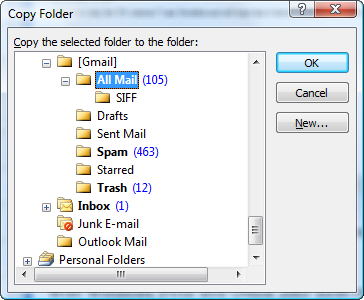
All client-only rules refers to your local machine only. In Mani's scenario he was trying to move emails with particular subject to his personal folder. As i said above it's referring to his local machine. This is client-only rule. Now he has created a sub-folder in his mail box and changed this rule into server based rule.

Thanks mani to make this as a topic in my blog.
Sunday, April 18, 2010

Excel tip: Date, time insertion


Many people often use excel for various purpose. In any professional life in average 98% people use excel on daily basis.
Inserting current date and time is most often used functions. Let’s see the shortcuts to insert date and time in 3 different scenarios.
1.     Inserting Date: (Ctrl + ;)
To add the current date to a cell, begin by clicking on the cell where you want to date to be in your worksheet. Hold down the Ctrl key and hit the ; (semicolon) key. That will place the current date into any active cell.
Eg: 4/15/2010
2.     Inserting Time: (Ctrl + Shift + ;)
To insert the current time, click on the cell where you want to store the current time. Hold down both the Ctrl and Shift keys and press the ; (semicolon) key. That will place the current time into the cell.
Eg: 11:22 AM
3.     Inserting Date and Time:
To insert both the current date and the current time into the same cell, click on the cell where you want the date and time to be in your worksheet. Hold down the Ctrl key and press the ; key. Now, hit the space bar and hold down the Ctrl and Shift keys and press the ; key.
Eg: 4/15/2010  11:23:00 AM

Also,
·        To insert a dynamic date stamp into Excel, enter the following formula into any cell: =TODAY()
·         To insert a dynamic date and time stamp into Excel, enter the following formula into any cell: =NOW()

Depending on your need you can use any of the above options.