Monday, March 14, 2011

Blocking specific friends from reading your facebook status

Dear Readers,

I am back with more words this week. It's going to be a facebook week this time, i went thru many parameters and research in facebook settings and thought of sharing some tips for you all.

facebook has many options to secure and have control over our posts not everyone would have used this option. This could be the main key for success towards facebook. As we have many family and office friends added to our facebook list we may feel like sharing our status to everyone but not to couple of family/office friends. Today let's see how to block specific friends from reading our status.

Step1: Once you login to the facebook account while updating your status you would see a padblock icon as shown below. Click on "Customize" option.

Step2: On Customize option you can select the particular list and in the below option you have to enter your friends name whom we should hide this post from and Click on "Save Settings".

Incase if you want this to have it by default then check the appropriate option shown below.


Monday, February 21, 2011

Google 2 point verification

Dear Readers,

As i said you all early in my wall that Google has just announced the next level of security measure to our accounts by introducing 2 point verification.

2 Point verification is nothing but once you enter your password for any Google account , you would be prompted to enter the verification code which will be generated on your smartphones. Once you enter the verification code if it matches then you would be allowed to access your account else you will not be able to access your account.

This two point verification is divided into two different parts 

1. Via smartphone
2. Via application specific password.

Via Smartphone:

This method is nothing but your verification code will be generated via your smartphone thru Google Authenticator application and you can use this to login to your Google account using that verification code.


Via application specific password:

Once smartphone verification is enabled for example if you have configured your gmail account with outlook or with your iphone mail application then it will not fetch any emails. It will say authentication failed. Because these applications will not be prompting for verification code so you would need to enter your application specific password.


Don't worry Google has many recovery option in-case if your phone is missed or stolen.

It's very simple to activate 2 point verification code.

1. Login to your Google account
2. Click on settings
3. Click on Accounts and import tab
4. Click on "Other Google account Settings"
5. Now click on "using 2 step verification" rest is very simple. Follow as said on screen.

Outlook items read when selection changes

Dear Readers,

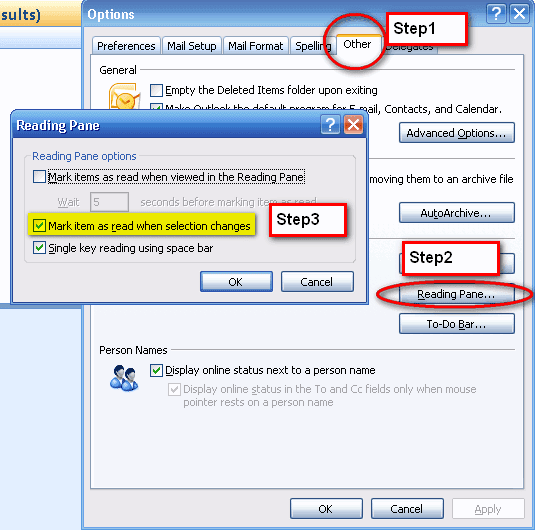
I have seen many of my co-workers suffering with this problem. They open outlook and start reading emails. When they move to next, next emails the previous emails goes read. In this way they miss out some important emails or they again mark that as unread to read it later.

This happens daily but no one is fixing this though they understood it's an extra effort for them daily. It's very simple to fix. Please follow the below steps.

Step1: Goto Tools --> Options
Step2: Click on "Other" tab and select "Reading Pane" under Outlook Panes.
Step3: Now un-check "Mark items as read when selection changes".


Saturday, February 5, 2011

Microsoft Office 2003 to 2007 usage

Dear Readers,

One of our reader has queried to us like they were using office 2003 for long and now they have upgraded to 2007 version. The interaction and the usage is very different in 2007 compared with 2003.

This becomes difficult to everyone hence microsoft has given an online interactive guide thru which we can click on the options as like 2003 version and it will show how we should work in 2007 version.

Try this and let me know if you specifically looks for something.

Click here to navigate to interactive guide.

Extracting cells with specific Character

Dear Readers,

I got a scenario last week like in our shop we have 1000+ jobs which runs everyday. We have got the entire list of jobs that runs in our server and the requirement is to differentiate Daily/Weekly/Monthly jobs in different colums. The only identity is the 4th character of the job name gives either it's weekly / monthly / daily.

4th character = D is daily W is weekly M is monthly.

So if it's daily i need to put  Y it in column "Daily" , Weekly in Column "Weekly" , Monthly in Column "Monthly" (See below)

Job Name Daily Weekly Monthly

ABCD120N Y N N

BCED125N Y N N

ERED124N Y N N

WERW130N N Y N

TERM140N N N Y

The formula that i used is  =IF(MID(A2,4,1)="d","Y","N"). It's nothing but i am taking the 4th character of the job name and if it's "D" then i place Y in that column else N. Same in monthly just replace "D" with "W" and for monthly "D" with "M".